


Export your stats to Google Sheets
Connect a sheet once and Influtics keeps it up to date for you. Here is the connect flow, the export target, and the hourly sync.
- 1
Open Settings
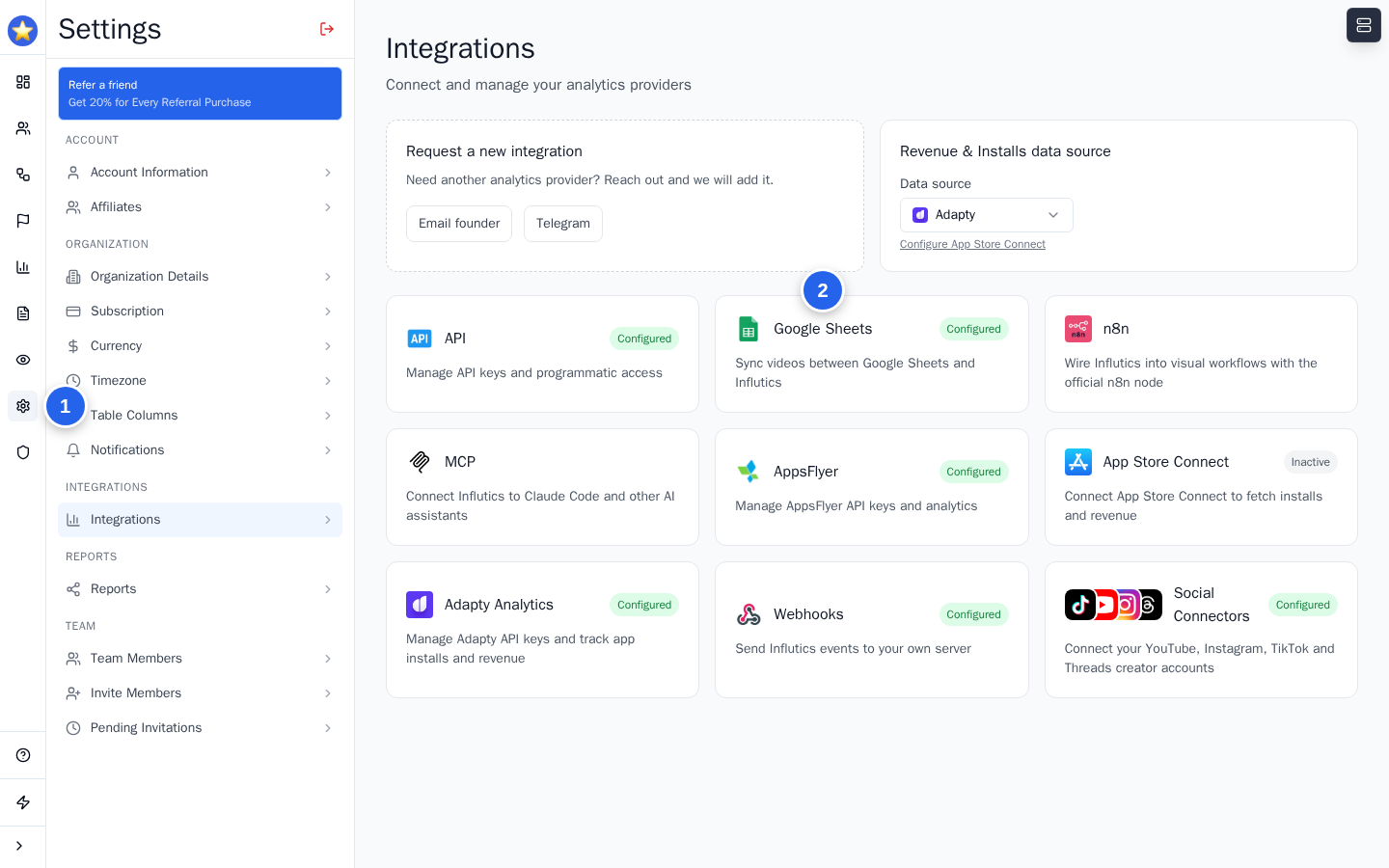
In the left sidebar, click the Settings gear ①, then "Integrations" and pick "Google Sheets" ②.
- 2
Connect your Google account
Press "Connect Google Sheets". You approve access to spreadsheets and Drive on Google's own consent screen; the connection is stored against your user account. The page then shows "Connected to Google Sheets" and a "Reconnect Account" button.
- 3
Link a worksheet
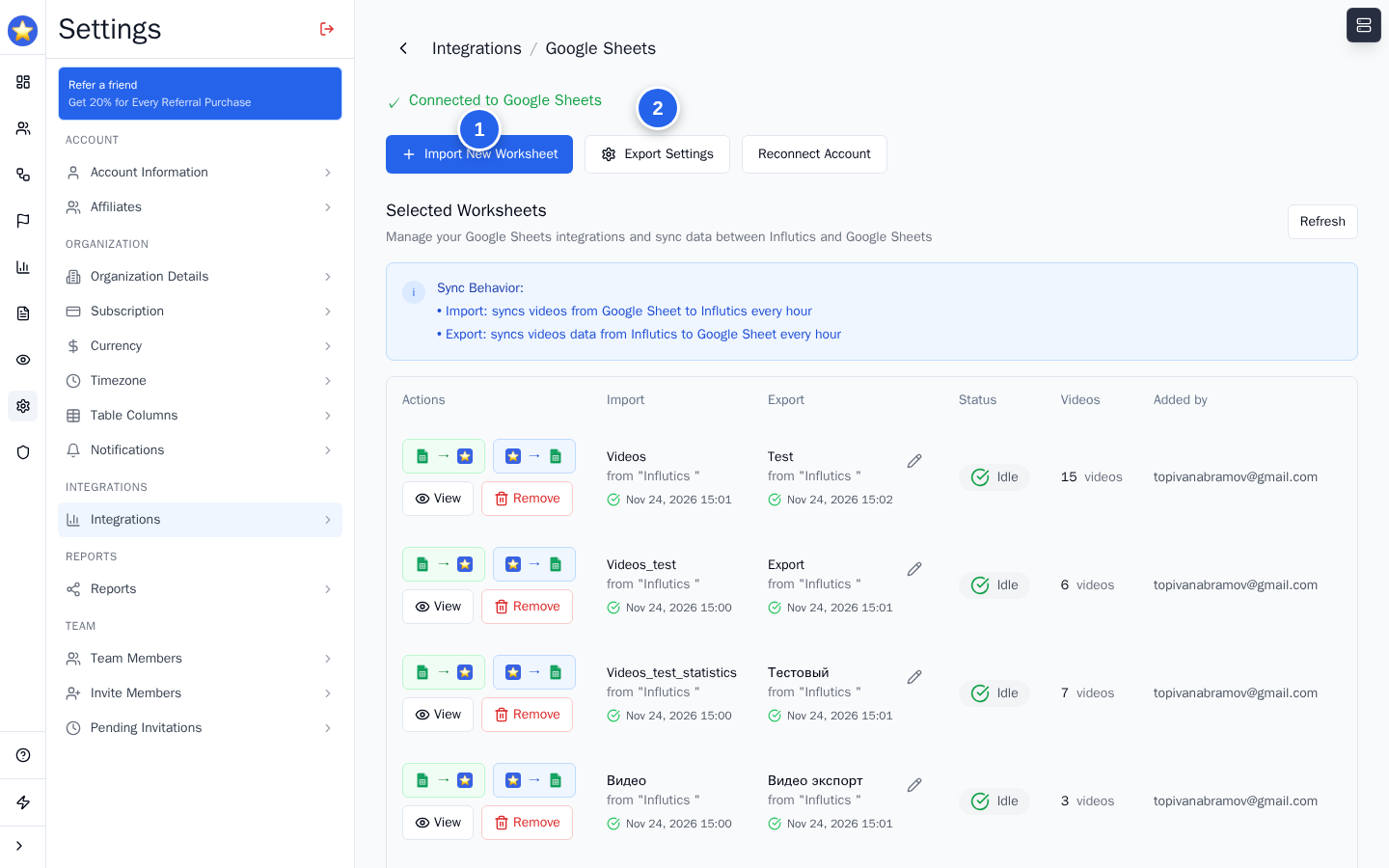
Press "Import New Worksheet" ① and pick the spreadsheet and worksheet that hold your video list. Each linked worksheet gets a row: the buttons in the Actions column re-import from the sheet or export to it, and the Export column shows the worksheet Influtics writes to. "Export Settings" ② chooses which columns are written — video URL, views, likes, comments, reposts, saves and initial URL by default.
- 4
Name the export worksheet
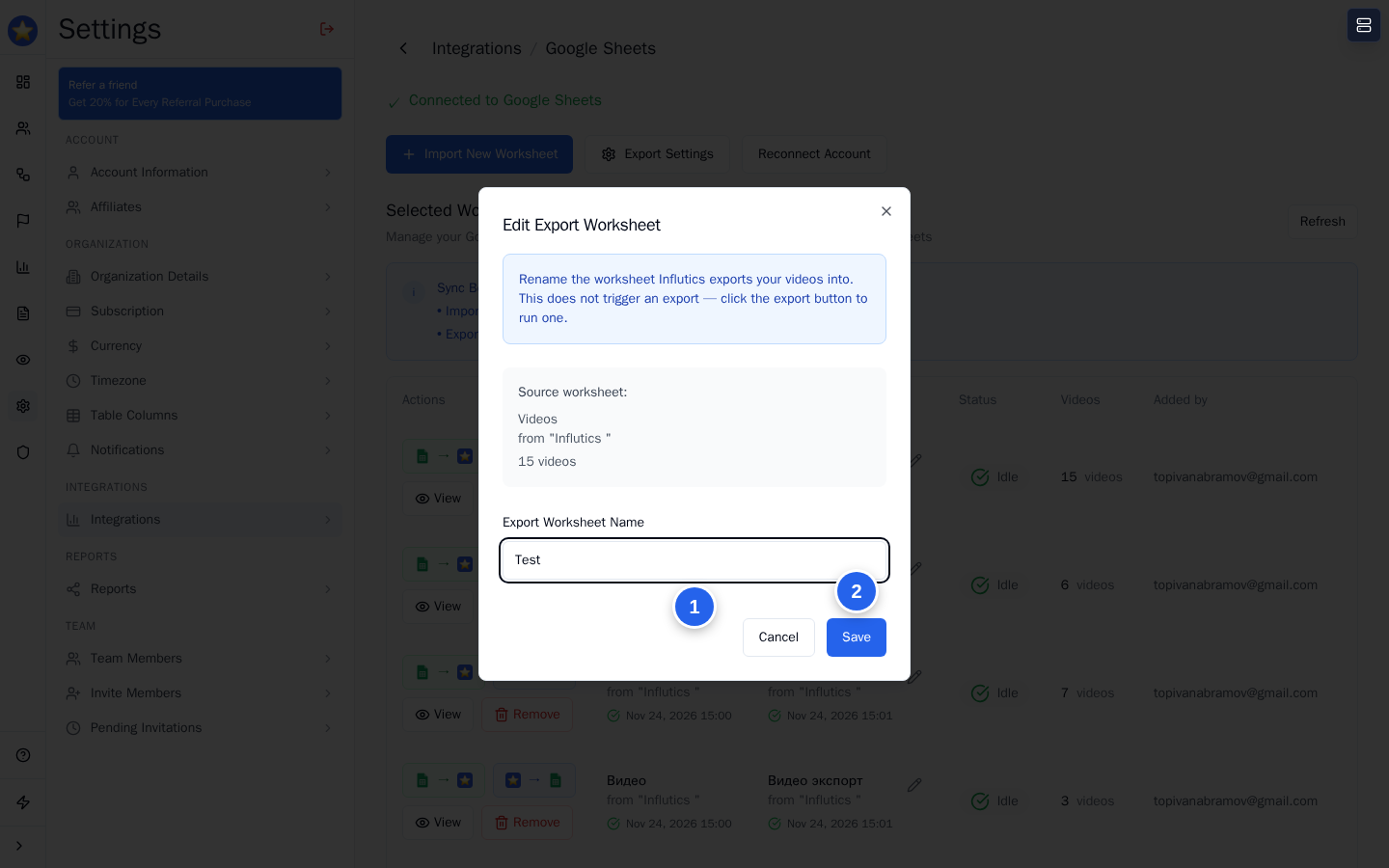
The first time you export, Influtics asks for the name of the worksheet it should write into — Videos_export, for example ① — and creates it in the same spreadsheet. The pencil next to the target name opens the same dialog again if you want to rename it later; press "Save" ② to confirm.
- 5
Let it sync every hour
Both directions run on an hourly schedule: the sheet is re-imported into Influtics and the export is rewritten from the current stats. You can also push a run immediately with the export button on the row. The sheet export covers every tracked video in scope — unlike the Excel export, the dashboard filters do not narrow it.
Ready to Automate Your Social Media Analytics?
Join thousands of creators who trust our platform for real-time metrics tracking
100K+
Videos Tracked
50M+
Data Points Analyzed
99.9%
Uptime